Submit cash register instruction
This is step 2 of 3
This guide covers only the application you file with the tax service. The full setup looks like this:
- 1. Create a register in VCR — it gives you the website address, the application name and the CSR file. You need all three in the application.
- 2. File application 101 (u6) in your tax service account and download the CRT file — that is the guide below. you are here
- 3. Upload the CRT back into VCR and the register goes live.
VCR can file this application for you: the register setup window has a semi-automatic mode. Use the guide below if you or your accountant prefer to file it by hand.
There is no separate contract to sign — but a contract is concluded: our terms of service are a public offer that you accept when you sign in, and the version, date and time of that acceptance are recorded. For legal entities that is enough — the written form of the contract is deemed observed (RA Civil Code, art. 450(3) and art. 454(3)). If your accountant needs a copy on file, write to us and we will send a digitally signed PDF.
Create a register in VCRPlease note that for transactions in the personal account on the tax service portal, an electronic signature (e-signature) will be required. In the Republic of Armenia, mID, eID, and ARX Cosign technologies are used for e-signatures. You may use the e-signature of your accountant and/or lawyer, or your own. (If you don’t have an e-signature, you can obtain one from EKENG, available even for foreign nationals).
What to do on the tax service portal
1. Login to Online Filing System of the Tax Service (hereinafter referred to as OFSTS)
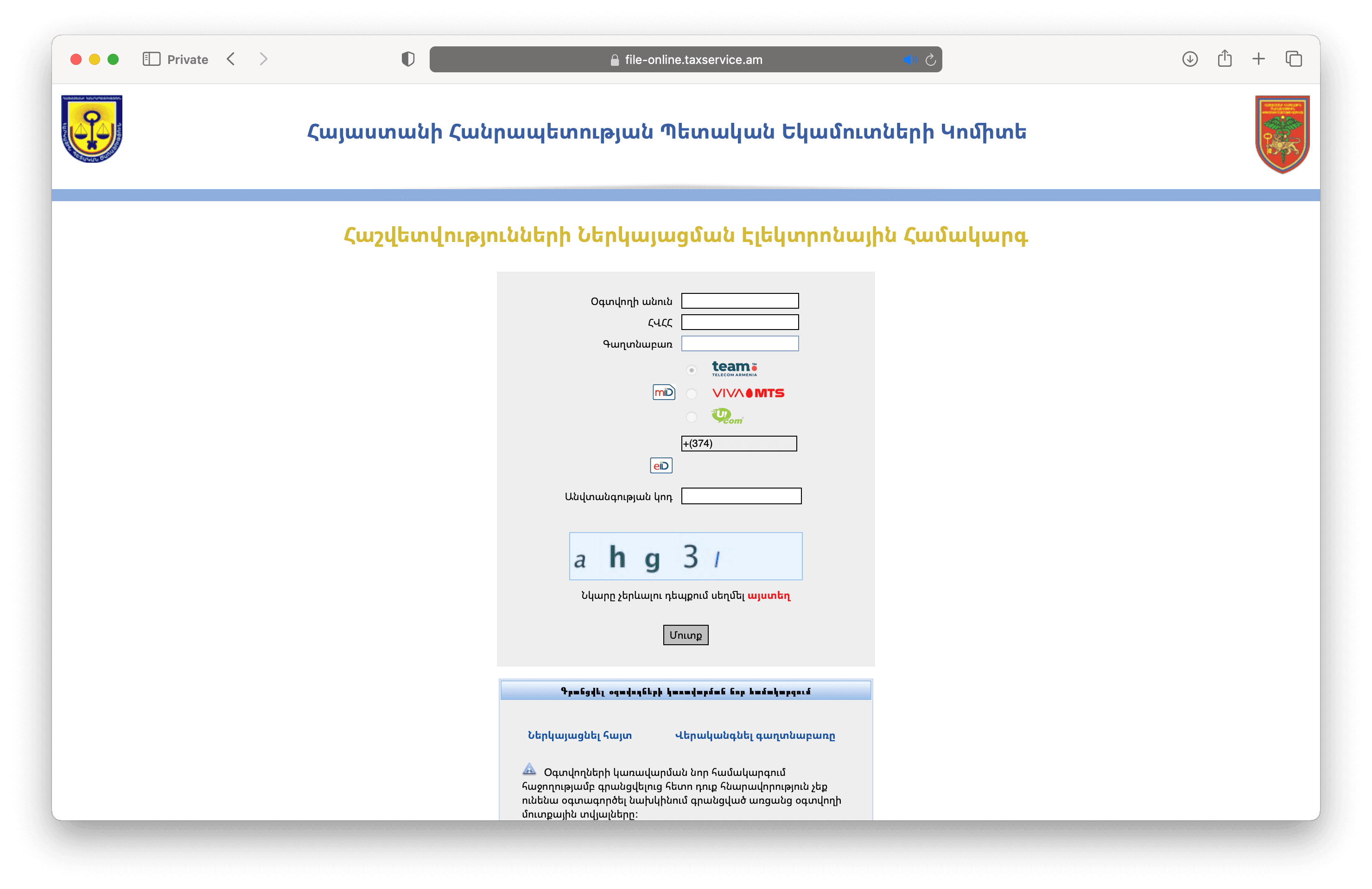
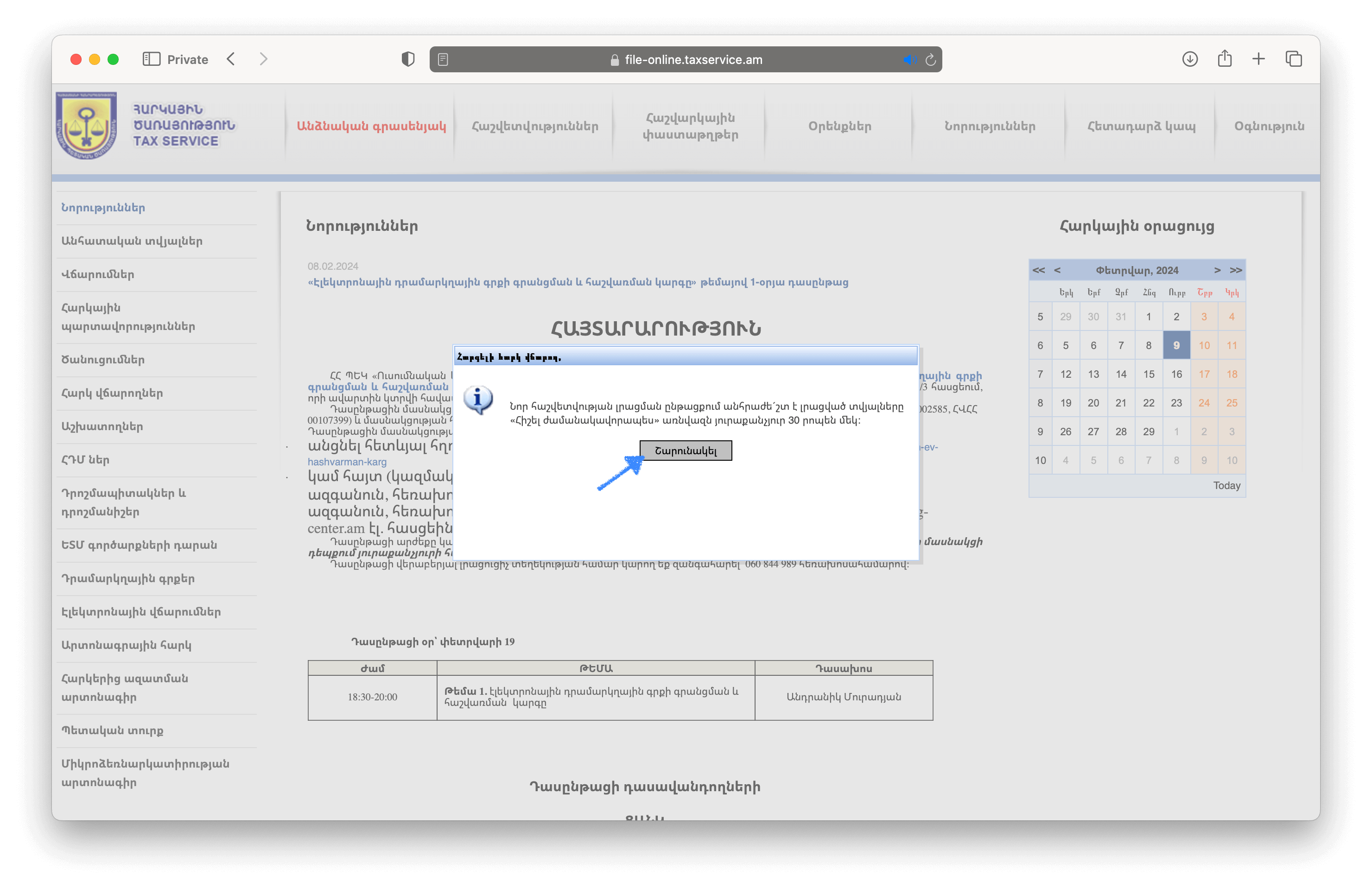
2. Press the 'Շարունակել' (Continue) button
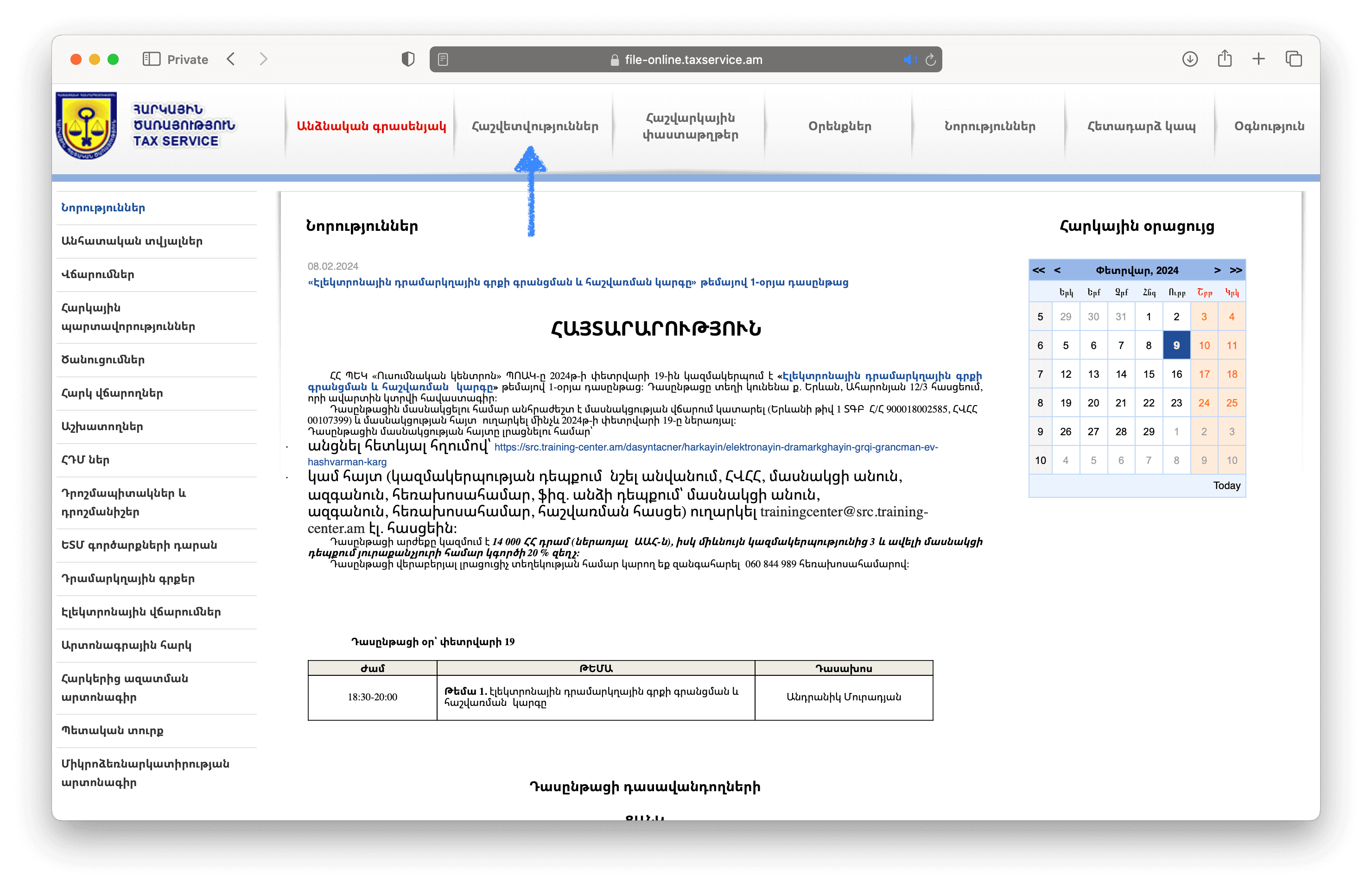
3. Go to the 'Հաշվետվություններ' (Reporting) section
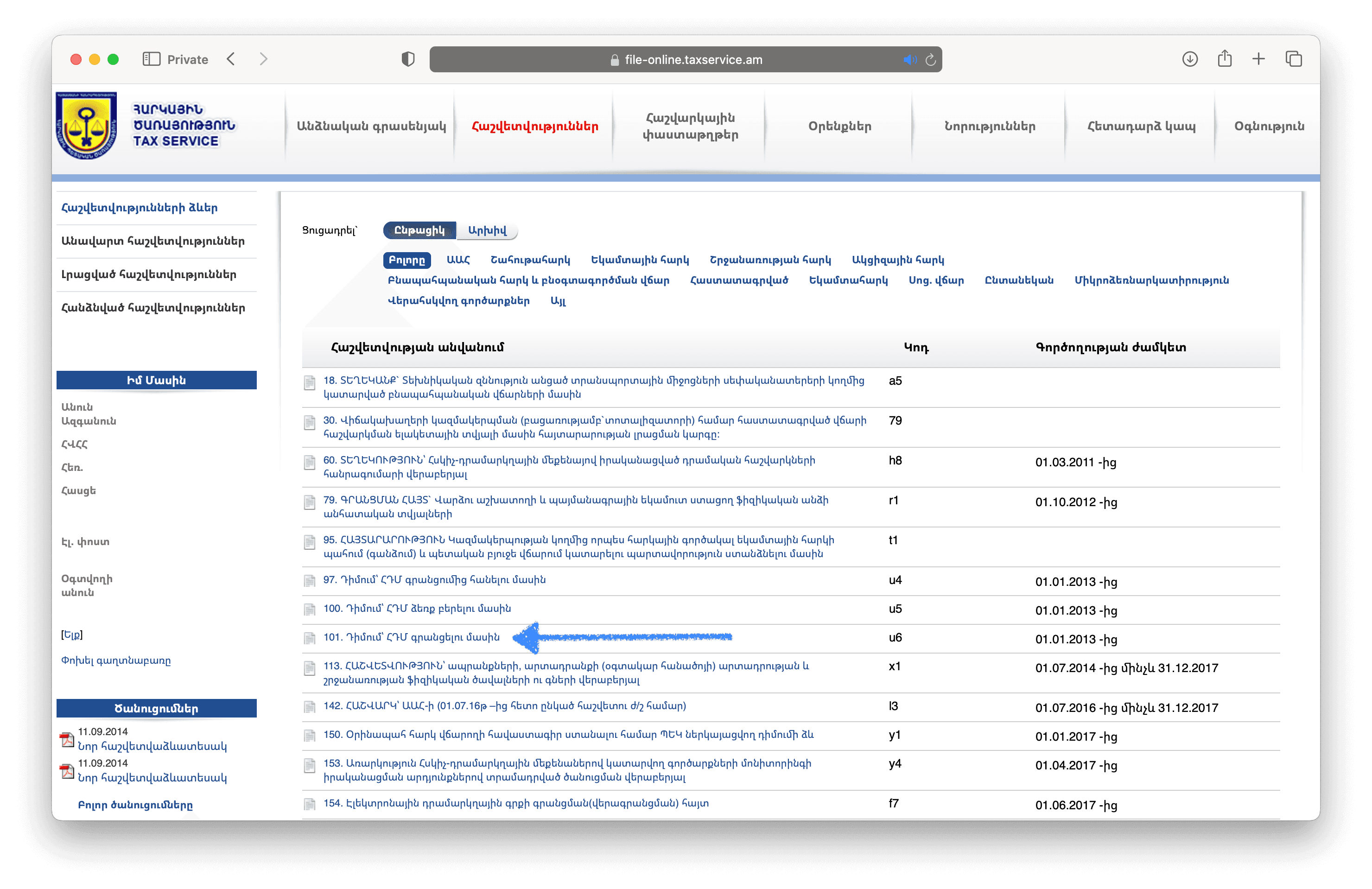
4. Select the report '101. Դիմում՝ ՀԴՄ գրանցելու մասին' (Application for Cash Register Registration) under code u6
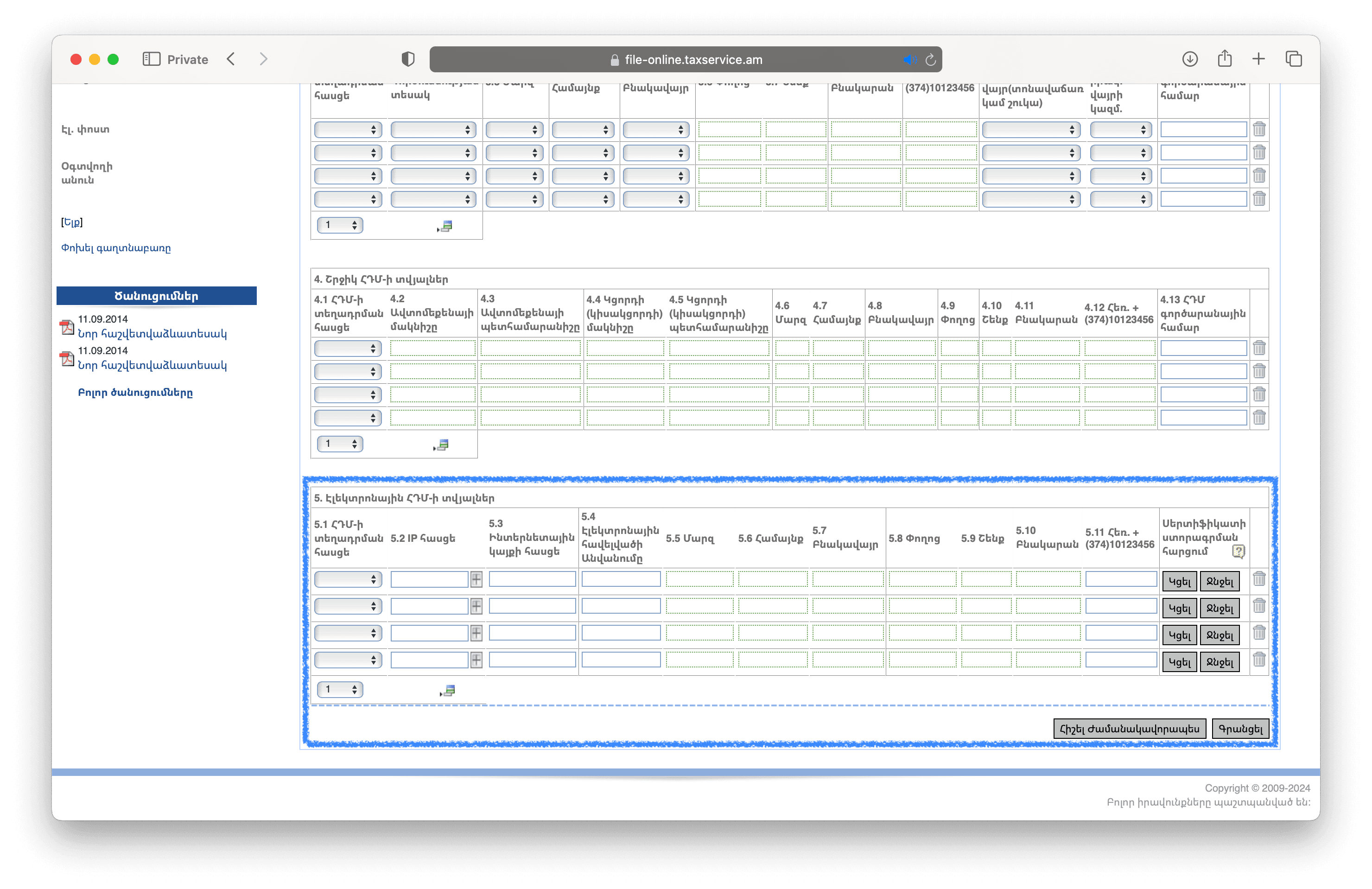
5. Scroll down to the section '5. Էլեկտրոնային ՀԴՄ-ի տվյալներ' (Electronic cash register data)
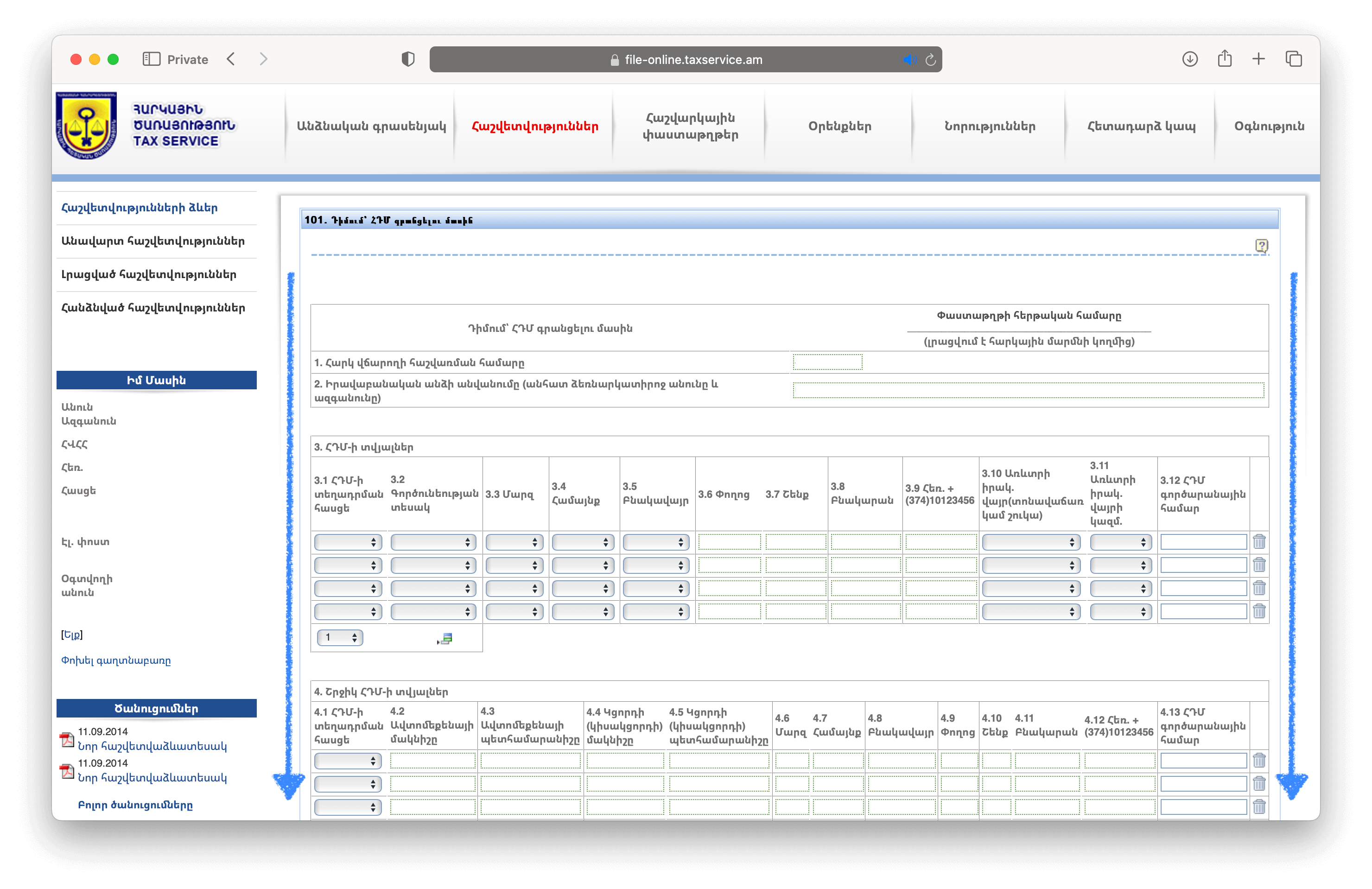
6. Ensure that you see the '5. Էլեկտրոնային ՀԴՄ-ի տվյալներ' (Electronic cash register data) section
7. In the dropdown menu '5.1 ՀԴՄ-ի տեղադրման հասցե' (Cash register installation address), select the 'Նոր' (New) option. After selection, fields from 5.5 to 5.10 will be automatically filled in.
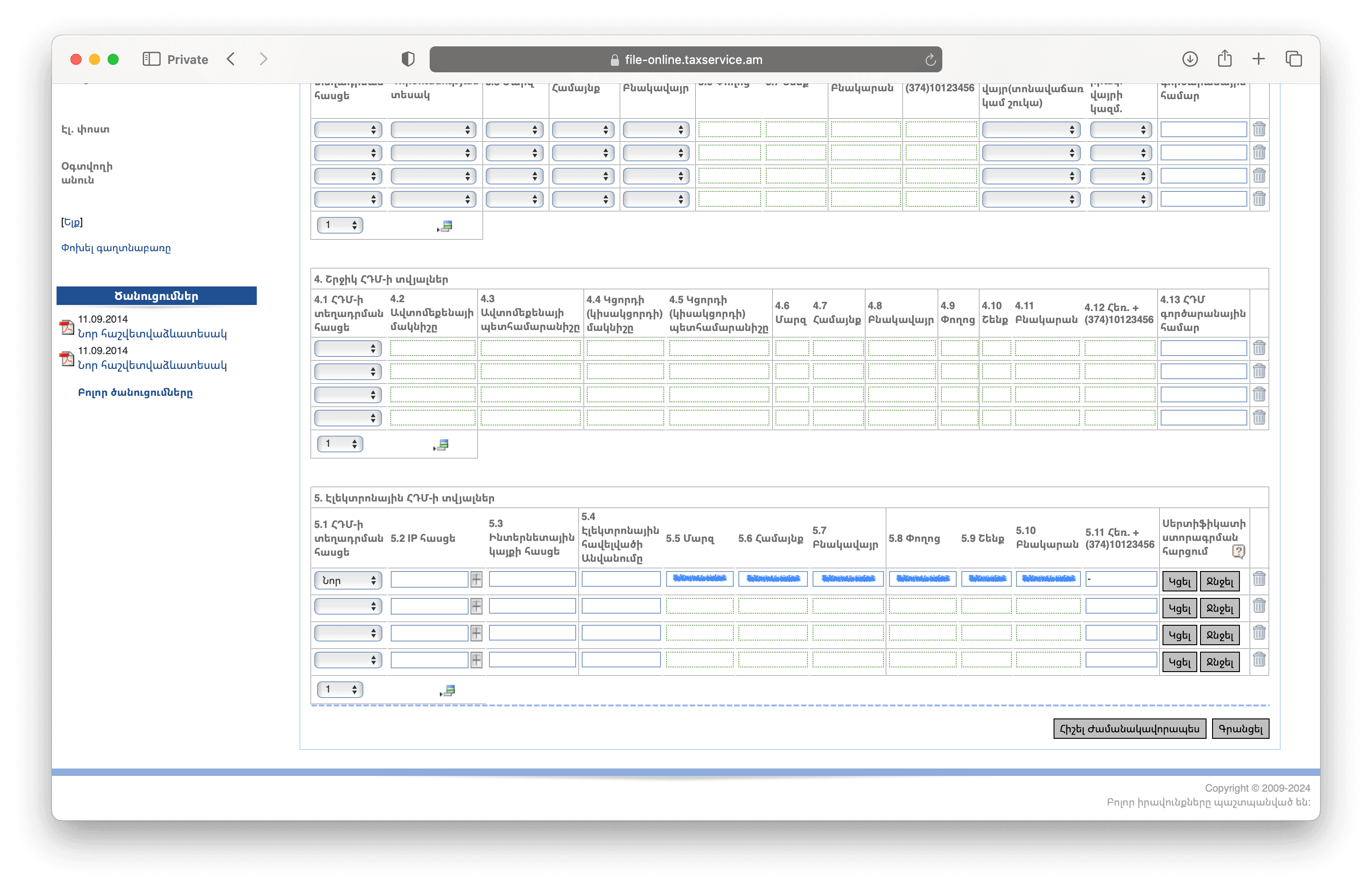
8. Enter the address of your electronic application's website (online store or otherwise) in the field 'Ինտերնետային կայքի հասցե' (Website address) in the format https://yourwebsite.com
9. Enter the name of your electronic application in the field 'Էլեկտրոնային հավելվածի Անվանումը' (Name of Electronic Application)
Take both values from your register in VCR — the setup window has a "Copy all" button.
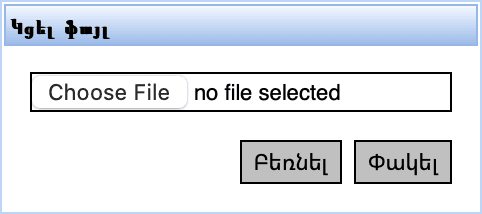
10. Press the 'Կցել' (Attach) button
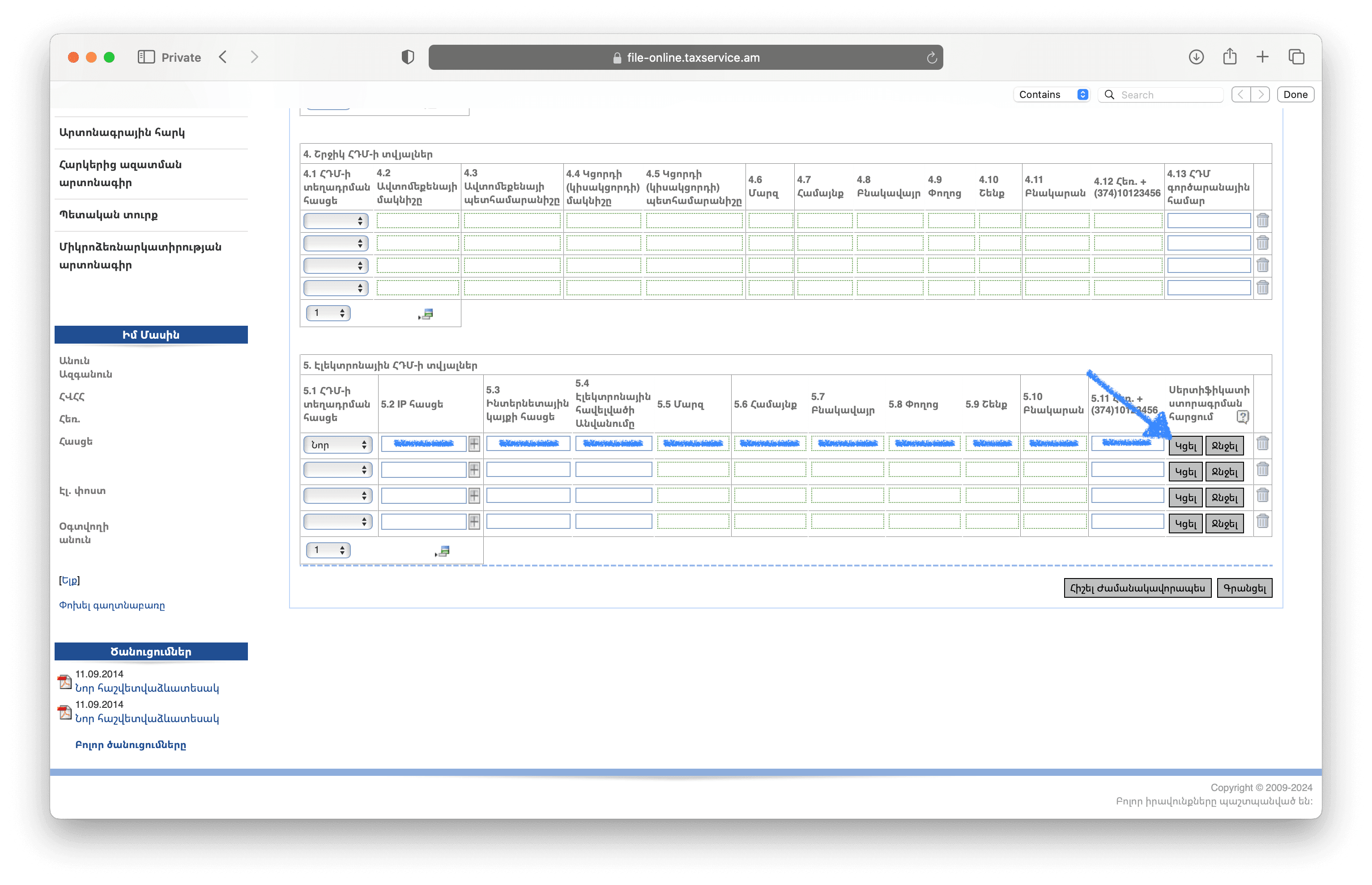
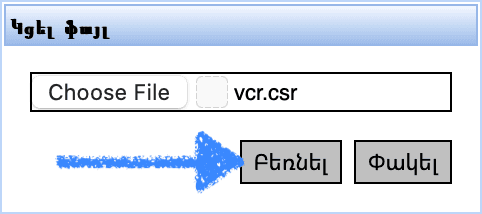
11. Select the downloaded CSR file. Press the 'Բեռնել' (Upload) button
The CSR file is generated by VCR — download it in the register setup window, step "Download the CSR file". The tax service does not issue this file.
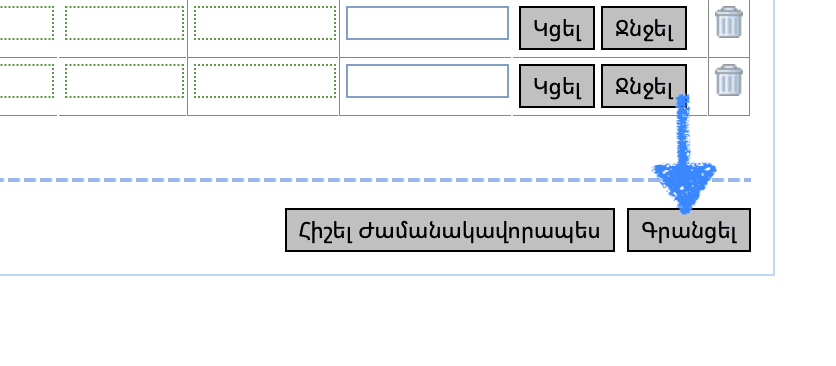
12. Press the 'Գրանցել' (Register) button
13. Sign the document using eID or mID.
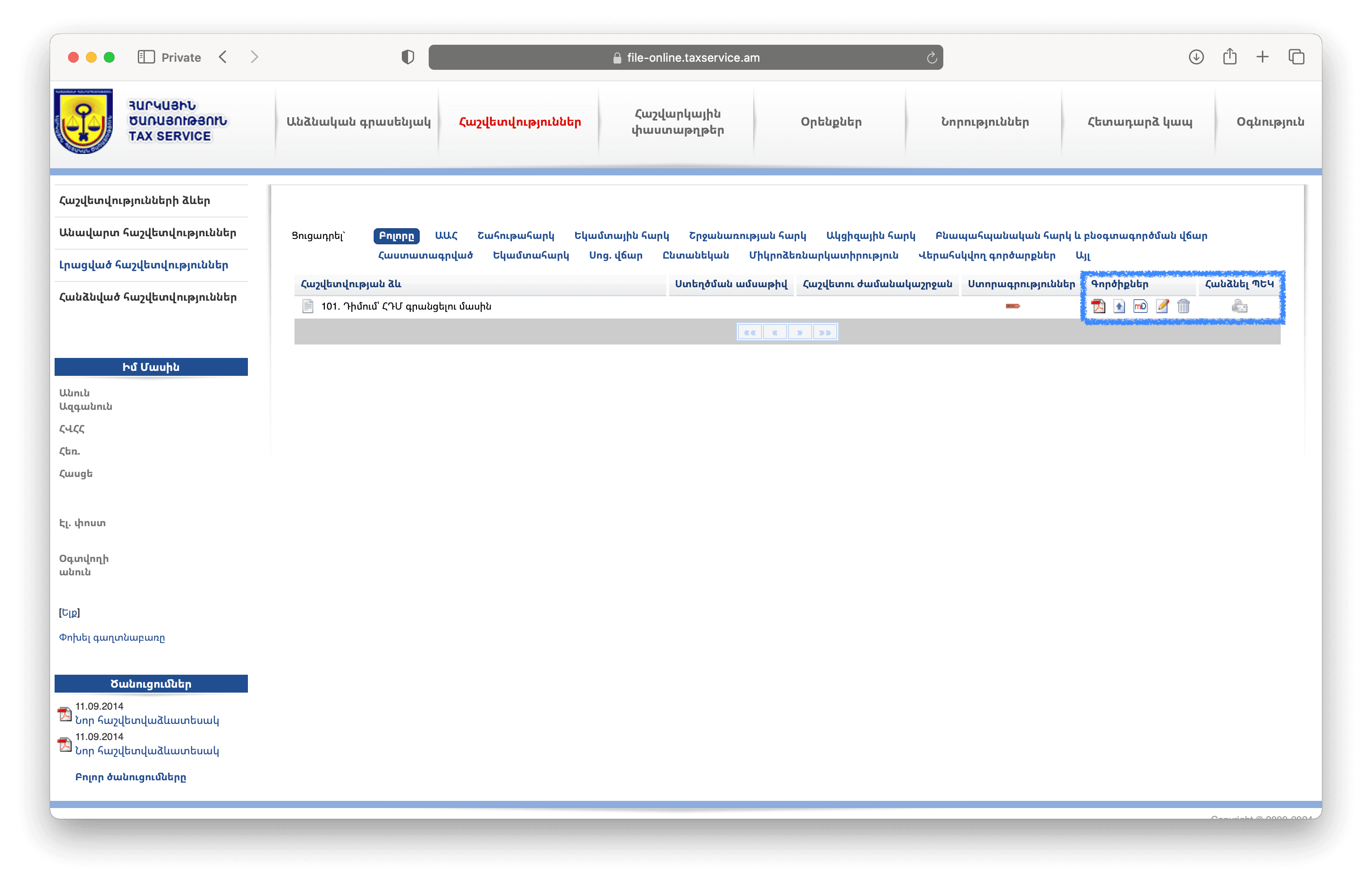
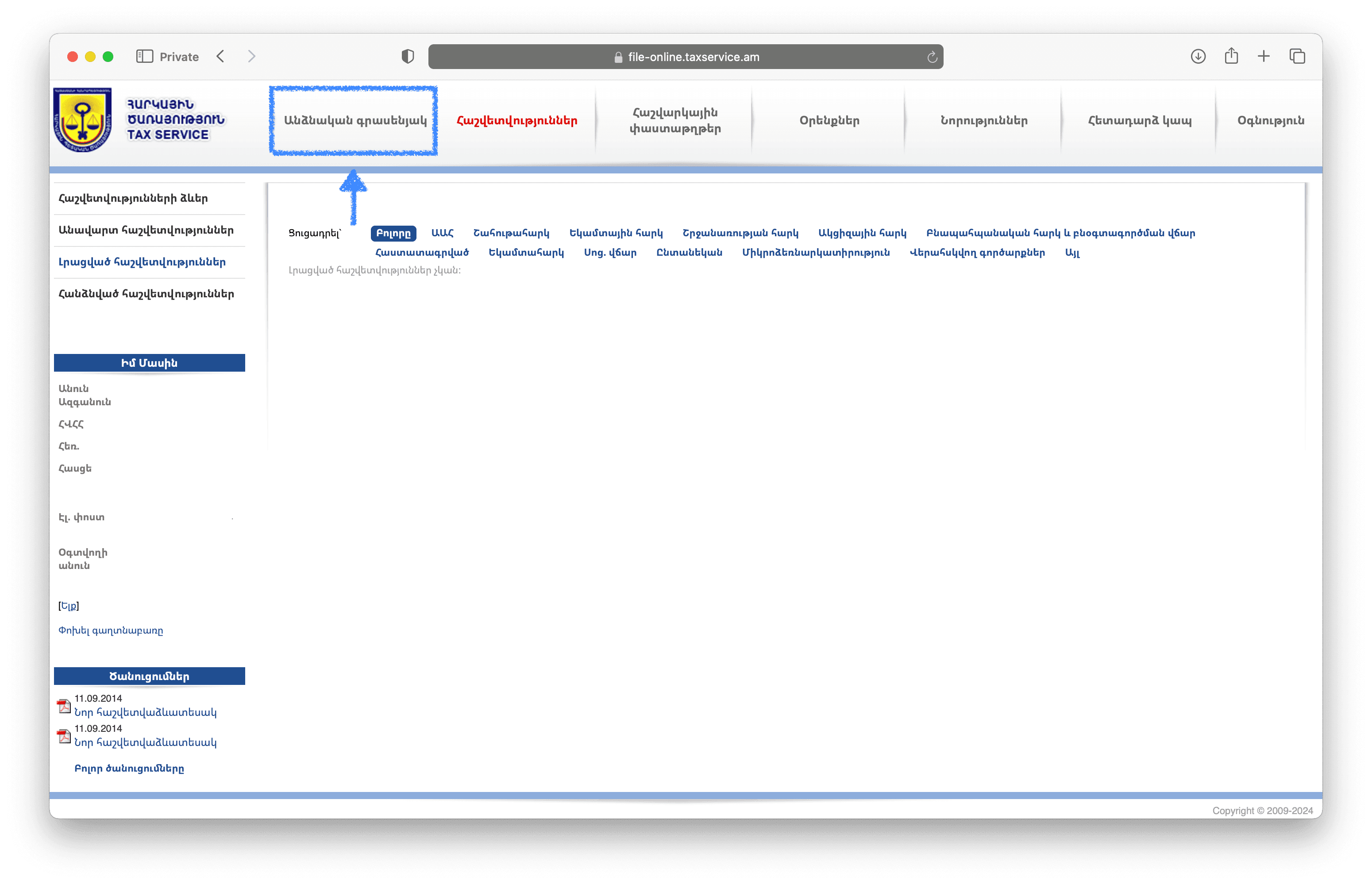
14. Go to the personal account ('Անձնական գրասենյակ').
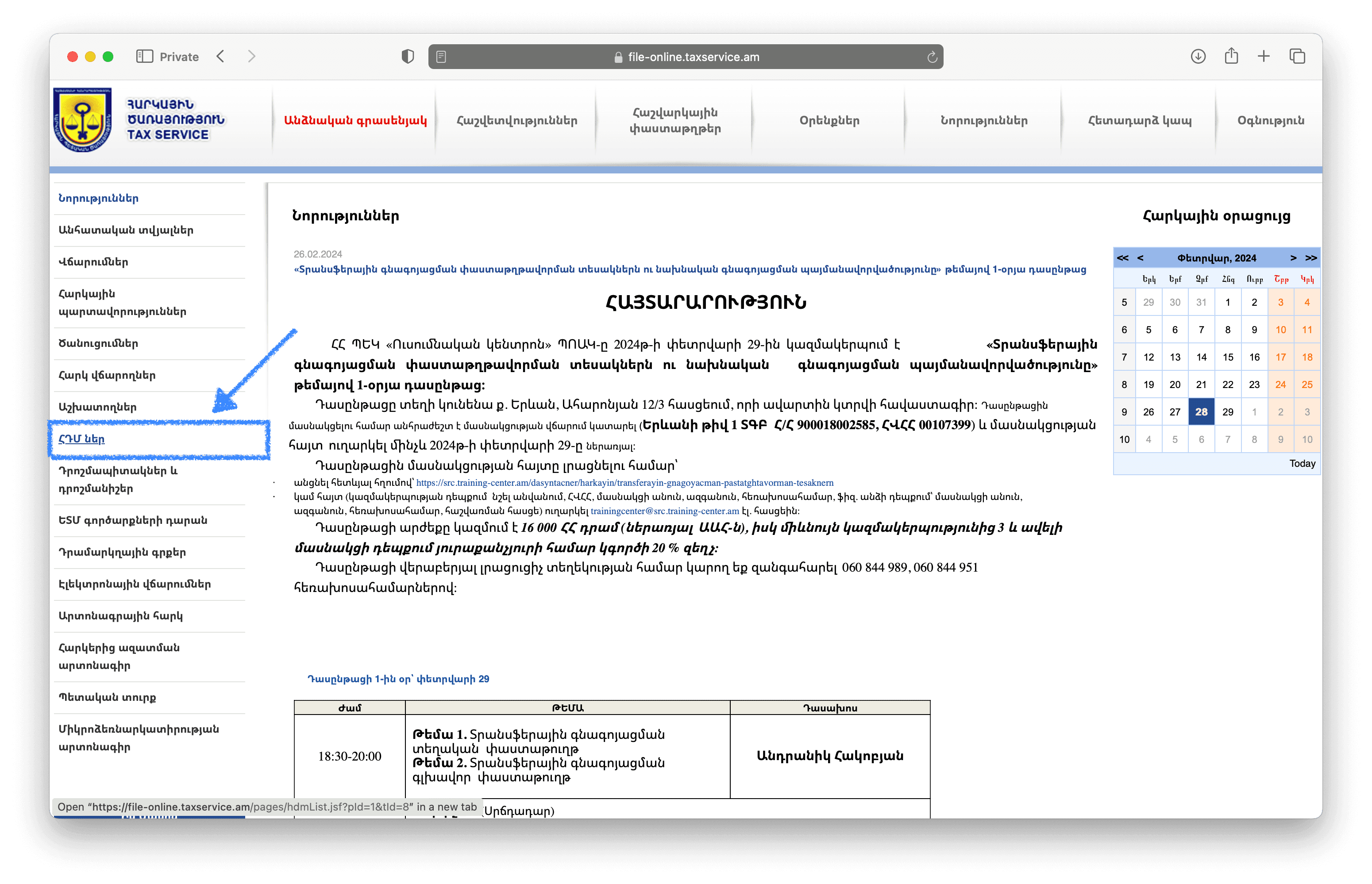
15. Go to the 'ՀԴՄ ներ' page ('POS Data')
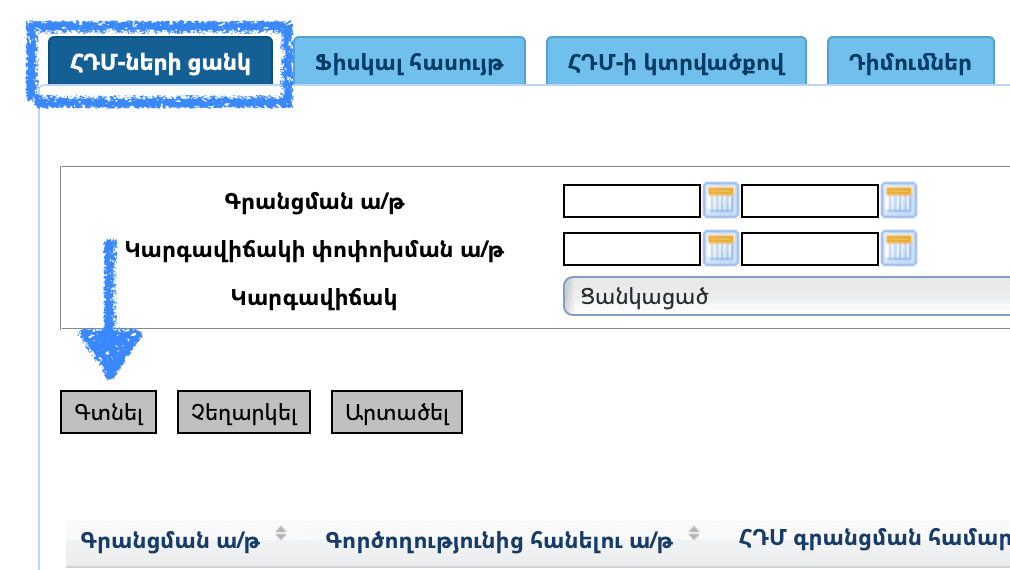
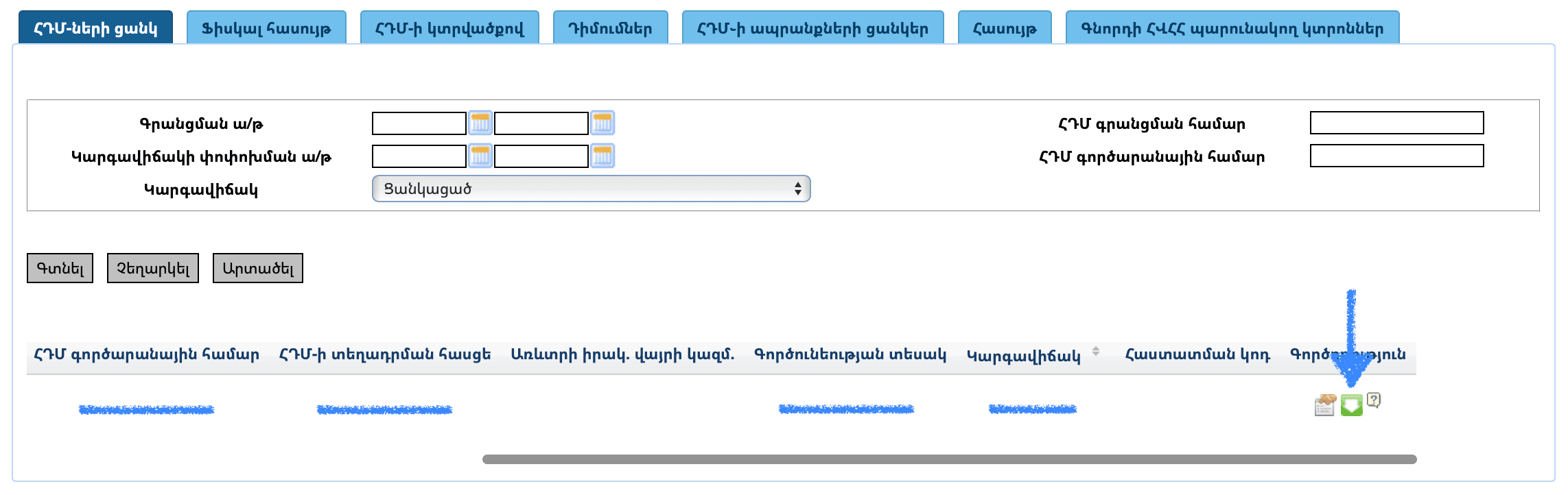
16. On the 'ՀԴՄ-ների ցանկ' (List of Cash Registers) tab, click on the 'Գտնել' (Find) button.
17. Scroll the cash register list to the right end.
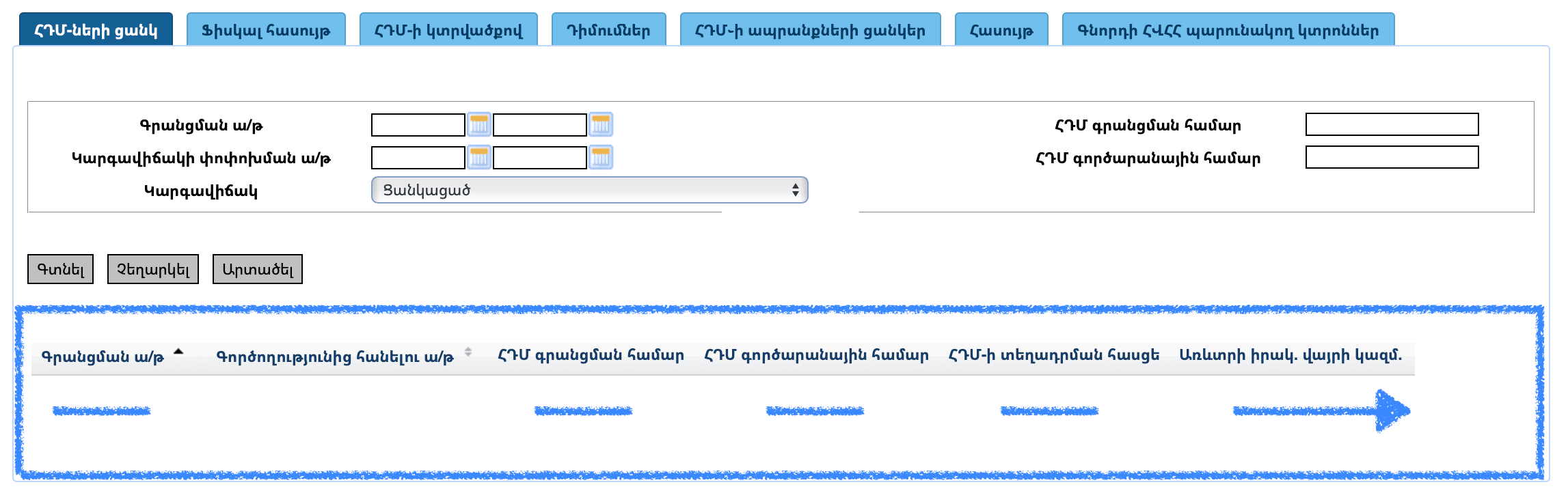
18. Click the button to download the CRT file. The file will have a name like '12345678_12345678.crt' and will most likely be saved in the 'Downloads' directory.
Back in VCR
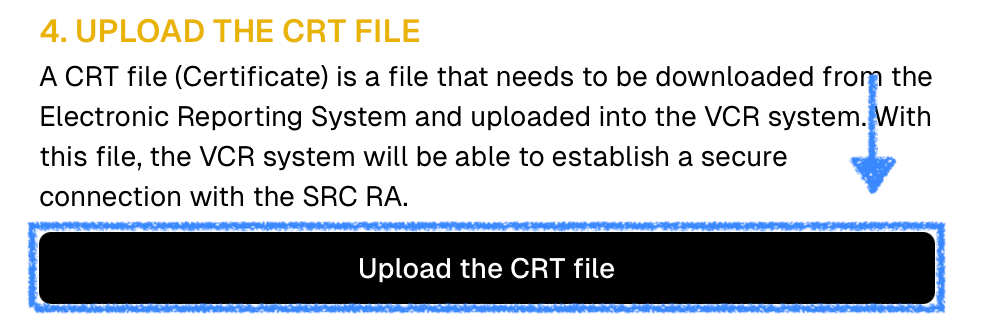
The last step happens in VCR, not at the tax service — in the same setup window where you downloaded the CSR file.
19. Upload the CRT file
Still have questions?
Write to support@vcr.am or message us on Telegram — a real person answers, not a bot. We correspond in English or Russian.